Everything you need to go from zero to a live robot: partner broker, deposit, licence key, MetaTrader 5 install and 24/7 hosting. One step at a time, for real accounts.
Three fully automated robots for MetaTrader 5. Each one is its own series, with numbered generations. They all share the same promise: one setting. You pick the risk level and the engine does the rest.
The full path from nothing to a robot trading on your own account. Most people finish it in one sitting. Jonas walks you through it on Telegram if you get stuck.
Create your free MFXT account
Sign up at app.mfxtai.com with your email. You receive a 6-digit code to confirm it. Your dashboard is where your licence keys, your downloads and your live results live.
Choose how you get your robot
There are two ways, and both give you one robot:
Free route (most popular). Open a real account with one of our partner brokers and fund it. That unlocks one robot, free.
Buy one robot. Pick the robot you want and pay through its official checkout.
Either way you become an MFXT member. The rest of this guide follows the free route.
Open your partner broker account
Pick a broker on the partner brokers page (we recommend Vantage Markets) and open the account through its MFXT button. Choose a Standard account, platform MT5, currency USD.
!
An account opened without the MFXT link can't be linked to your access. If you already have an account at one of these brokers, talk to Jonas first.
Fund it: one deposit of $500 or more
The minimum is $500 in one single deposit. We recommend $1,000 or more for smoother performance.
!
Several smaller deposits don't add up. $300 today and $200 tomorrow is not a $500 deposit, even if the balance reaches $500. The minimum has to arrive in one transaction.
Send your details to Jonas
On Telegram, send Jonas your full name, your broker account ID and your user ID. Your registration and your deposit are then checked against the broker's own records. There's nothing to prove by hand: once the data confirms it, your access opens.
J
Jonas · MFXTonline
Today
Full name: Alex Martin Account ID: 12345678 User ID: 98765414:02
Got it Alex 👌 I'm checking your registration with the broker now. The next step lands right here as soon as it's confirmed.14:02
Example conversation · names and numbers are placeholders
Generate your licence key
In your dashboard, open License, choose your robot, and generate a key for your MT5 account. One key per robot, per trading account. See Licence keys.
Install the robot on MT5
Download it from your dashboard, drop it in MetaTrader 5, paste your key and allow the MFXT link. About fifteen minutes the first time. See Install on MetaTrader 5.
Keep it running 24/7
The robot only trades while MetaTrader is open and connected. A VPS keeps it running when your computer is off. See Run it 24/7.
✓
You're live. Within a minute of attaching the robot, your account appears in your dashboard: balance, equity, open trades and results, in real time.
The free route works with any of these regulated partners. Open your account through the button: that's what links it to your MFXT access. We recommend Vantage Markets first.
i
Check your country first. Each broker refuses some countries. The lists below are the brokers' own, as of September 2026, and they can change: Jonas confirms your country before you sign up.
Vantage Markets joined our partners in October 2026 and its list is still being confirmed with the broker network. Jonas checks your country before you sign up.
Australia, Belarus, Burundi, Central African Republic, DR Congo, Guinea, Guinea-Bissau, Myanmar, North Korea, Russia, Singapore, South Sudan, Taiwan, Ukraine, United States, Venezuela, Zimbabwe.
American Samoa, Australia, Belarus, Bermuda, Bosnia and Herzegovina, Bulgaria, Burundi, Canada, Central African Republic, Crimea and Sevastopol, Croatia, Cuba, Cyprus, DR Congo, Eritrea, France, former Yugoslavia, Guam, Guinea, Guinea-Bissau, Iran, Iraq, Ivory Coast, Japan, Liberia, Libya, Mali, Myanmar, North Korea, Puerto Rico, Romania, Sierra Leone, Singapore, Slovenia, Somalia, South Sudan, Spain, Sudan, Syria, United States, US Virgin Islands, Venezuela, Yemen, Zimbabwe.
Afghanistan, Albania, American Samoa, Australia, Bermuda, Bosnia and Herzegovina, Botswana, Central African Republic, China, Crimea and Sevastopol, Cuba, DR Congo, Egypt, Eritrea, former Yugoslavia, Guinea-Bissau, Iran, Iraq, Lebanon, Libya, Montenegro, Myanmar, North Korea, Pakistan, Serbia, Sierra Leone, Singapore, Somalia, South Sudan, Sudan, Syria, Tunisia, Ukraine, United States, US Virgin Islands, Yemen, Zimbabwe.
All European Union countries, Afghanistan, Australia, Belarus, Burundi, Cuba, DR Congo, Eritrea, Eswatini, Haiti, Iran, Israel, Libya, Maldives, Mozambique, Myanmar, North Korea, Palestine, Russia, Saint Vincent and the Grenadines, Somalia, South Sudan, Syria, Ukraine, United States, Vanuatu.
You already have an account with one of them
A broker links each client to a single partner. If your account was opened elsewhere, it sometimes can be moved under MFXT, but that depends on the broker: it can take time and it can be refused. Tell Jonas which broker you're with. The quickest way is usually a new account with a partner you're not with yet.
No partner works for you
If none of these brokers accepts your country, or you'd rather keep your current broker, you can buy one robot instead. It runs on any MT5 account.
Put the robot in MetaTrader, paste your licence key, allow the MFXT link, switch Algo Trading on. About fifteen minutes the first time, two minutes after that.
!
MetaTrader 5 only. All three robots are .ex5 files: they don't load in MT4. If your account is MT4, open an MT5 account with your broker.
Download your robot
In your dashboard, open Download. You only see the robots you own. Download the .ex5 file.
Put it in MetaTrader
In MT5: File → Open Data Folder → MQL5 → Experts, and copy the file there. Back in MT5, open the Navigator (Ctrl+N), right-click Expert Advisors → Refresh. Your robot appears in the list.
Allow the MFXT link
Tools → Options → Expert Advisors: tick Allow WebRequest for listed URL and add this address:
Disable algorithmic trading when the account has been changed
Allow DLL imports (potentially dangerous, enable only for trusted applications)
Allow WebRequest for listed URL:
https://app.mfxtai.comAdd this
+ add new URL like 'https://www.mql5.com'
OKCancel
MetaTrader 5 · Tools → Options → Expert Advisors
The robot uses it to check its licence and to send your results to your dashboard. Without it, it can't start trading.
Open the right chart
Open an M5 chart of the symbol your robot trades: XAUUSD or EURUSD for PHANTOM X4 and ULTRA X, XAUUSD for STRIKE X. Your broker may add a suffix (XAUUSD.s, XAUUSDm…): that's fine.
Attach it and paste your key
Drag the robot from the Navigator onto the chart. In the Inputs tab, paste your licence key in LICENCE KEY. In the Common tab, tick Allow Algo Trading. Click OK.
MFXT PHANTOM X4?✕
AboutCommonInputsDependencies
Variable
Value
========== [ LICENCE ] ==========
>> LICENCE KEY <<
PHX4-7K2M-9QF4-3JDAPaste here
========== [ 1. RISK ] ==========
Sizing mode
Auto
Risk profile
Balanced
Re-size with the balance
true
========== [ 2. SAFETY ] ==========
Daily goal
true
News guard
true
LoadSaveOKCancel
MetaTrader 5 · robot properties, Inputs tab · example key
Switch Algo Trading on
The Algo Trading button in the MT5 toolbar must be green. If it's grey, the robot is attached but not allowed to trade.
Check it's live
In the Experts tab at the bottom of MT5 you should read these two lines. Your account then shows up in your dashboard within a minute.
Time
Source
Message
10:32:05.118
MFXT PHANTOM X4 (XAUUSD,M5)
PHANTOM X4 | validated profile BALANCED
10:32:06.402
MFXT PHANTOM X4 (XAUUSD,M5)
PHANTOM X4 | LICENCE VALID
10:32:07.215
MFXT PHANTOM X4 (XAUUSD,M5)
PHANTOM X4 | DASHBOARD connected - account history sent
Step 3 is missing or the address has a typo. Add exactly https://app.mfxtai.com, then remove and re-attach the robot.
The chart says "VERIFYING LICENCE…" and nothing happens
The robot retries every minute until it gets an answer. Check that your terminal is connected to the internet and that the key was generated for this account number and this server.
The chart says "TRADING HALTED - LICENCE INVALID"
The key doesn't match this account, this server or this robot. Each key is tied to one robot on one account: generate the right one in License.
The robot is removed from the chart as soon as I attach it
Look at the last line of the Experts tab: it says why. The most common reasons are an empty licence key and, for ULTRA X, an account that isn't a hedging account.
My dashboard still shows nothing
Wait one minute after the robot starts. If the Experts tab shows DASHBOARD connected but the dashboard stays empty, write to Jonas with the last 4 characters of your key.
A licence key tells the robot it's allowed to trade on your account. It's generated in your dashboard in seconds, and it's yours for as long as your access is active.
One key per robot, per account
Each key is tied to one robot on one trading account (the account number and its server). Running two robots, or the same robot on two accounts, means two keys.
Robot
Key looks like
PHANTOM X4
PHX4-XXXX-XXXX-XXXX
ULTRA X
ULTX-XXXX-XXXX-XXXX
STRIKE X
STRX-XXXX-XXXX-XXXX
Generate a key
Open License in your dashboard
The robots you own can be selected. The others are shown greyed out as Locked.
Pick the robot
Choose the robot you're about to install.
Fill in your MT5 account
Platform MT5, your broker, your server exactly as MetaTrader shows it, and your MetaTrader login number.
Generate and copy
The key appears at once. Copy it into the robot's LICENCE KEY input.
Generate license key
Tied to a single broker + MT login. Generated on MFXT servers.
PHANTOM X3PHANTOM X4ULTRA X · LockedSTRIKE X · Locked
Platform
MT5MT4
Broker
Moneta Markets▾
Server
MonetaMarkets-Live▾
MetaTrader login
12345678
Account type
LiveDemo
Generate license key
PHX4-7K2M-9QF4-3JDACOPIED
MFXT dashboard · License · example account and key
i
Your server isn't in the list? Tell Jonas the exact server name MetaTrader shows you. It's added for everyone.
Changing account
A key follows its account. If you move the robot to another trading account, generate a new key for that account.
!
Never share your key. MFXT support never asks for your full key, only its last 4 characters. And nobody from MFXT will ever ask for your password.
The robot trades only while MetaTrader is open and connected. Close your laptop and it stops. A VPS is a computer in a data centre that stays on for you.
SV
Skylinevps Recommended by MFXT
Windows VPS, MT5 ready, for running your robot 24/7
Your trades are managed around the clock, including when you sleep or travel.
02
A stable connection
No Wi-Fi drops, no sleeping computer, no Windows update in the middle of a trade.
03
Closer to your broker
A VPS near your broker's servers means faster orders.
04
Watch from anywhere
Your dashboard shows everything live, from your phone. No need to log in to the VPS.
What you need
A Windows VPS: MetaTrader 5 runs on it like on a normal PC. A small plan is enough for one terminal. Pick a location as close as possible to your broker's servers.
Set it up
Order your VPS and connect
Take a Windows VPS (Skylinevps is the one we recommend), then connect with the Remote Desktop details it gives you.
Install MetaTrader 5
Download MT5 from your broker's website and log in to your trading account.
The fourth generation of the PHANTOM line, and the MFXT flagship. Fully automated on Gold and EURUSD, with multi-layer capital protection working in the background.
Markets
XAUUSD (Gold) and EURUSD
Platform
MetaTrader 5 only
Chart
M5 chart of the symbol you trade
Capital
Minimum deposit $500, $1,000+ recommended
Key
PHX4-XXXX-XXXX-XXXX
The one setting: your risk level
Everything else is handled by the engine. Choose a risk profile in the robot's inputs:
Profile
What it means for you
Low
Smaller positions, and a losing run is cut earlier. Slower and steadier.
Balanced
The default, and the profile our results are built on.
High
Bigger positions. More upside, and deeper drawdowns.
Extra High
The most aggressive profile. Only with money you can truly afford to see swing hard.
✓
Leave every other input on its default. The robot sizes itself on your balance and follows it as your account grows.
X3 users
PHANTOM X4 is the update of PHANTOM X3, on the same line. Members running X3 keep it working.
The first generation of the ULTRA line: a market-neutral engine. It doesn't bet on where the market goes. It keeps both sides covered and manages the exposure.
Markets
EURUSD and XAUUSD (Gold)
Platform
MetaTrader 5 only, hedging account
Chart
M5 chart of the symbol you trade
Capital
Minimum deposit $500, $1,000+ recommended. On Gold: $5,000 minimum.
Key
ULTX-XXXX-XXXX-XXXX
!
A hedging account is required. ULTRA X holds both directions at once, which a "netting" account can't do. If you're unsure which type yours is, ask your broker or Jonas before installing.
The one setting: your risk level
Profile
What it means for you
Low
Smaller positions, steadier curve.
Balanced
The default, and the profile our results are built on.
High
Bigger positions. More upside, and deeper drawdowns.
✓
Leave every other input on its default. The robot adapts itself to your account size.
Backtest
!
This is a backtest, not a live result.
It replays past prices on XAUUSD (gold) with the strategy tester of MetaTrader 5. It does not predict what your
account will do, and a market that has never happened before has never been tested.
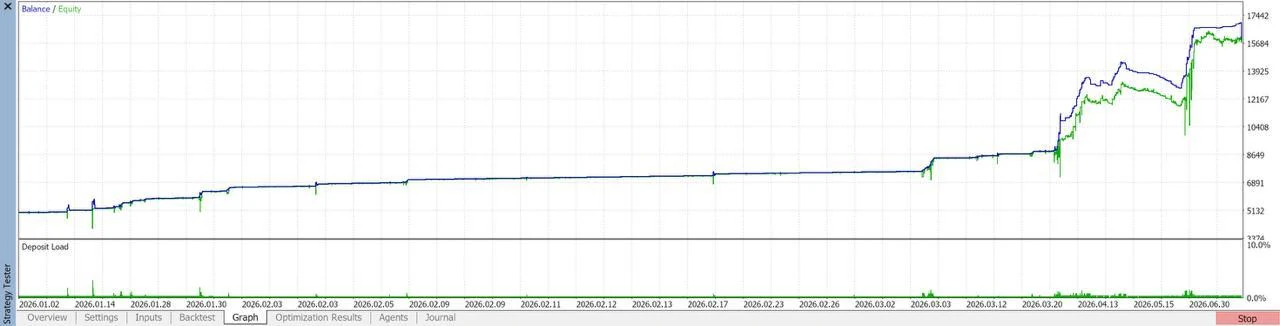
Tested onXAUUSD (gold)
PeriodJan 2, 2026 → Jun 30, 2026
Starting deposit$5,000
Ended at$15,899 ×3.2
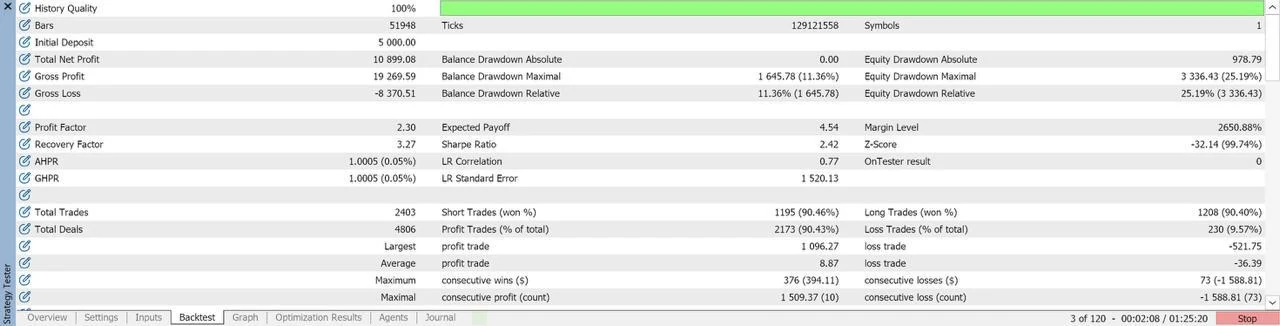
Worst equity drawdown25.19%
Profit factor2.30
How to read it.
It wins 90.43% of its trades, but a win averages $9 and a loss $36
- many small gains, rare larger losses. The profit factor of 2.30 is what says it comes out ahead.
The drawdown above is the equity one, measured while positions were open: the balance drawdown was
only 11.36%, and that is the figure most vendors show you.
Balance (blue) and equity (green) over the test. 2,403 trades.The full report, straight from the tester - every number above is on this image.
History quality 100%, 129 million ticks.
Run on the XAUUSD chart with a $5,000 account.
Leverage, spread and modelling mode are not on this report - we will add them rather than guess them.
The first generation of the STRIKE line. One clean shot inside the New York session, with the risk defined before the trade opens. It never chains trades and never averages down.
Market
XAUUSD (Gold)
Platform
MetaTrader 5 only
Chart
M5 chart of XAUUSD
Capital
Minimum deposit $500, $1,000+ recommended
Key
STRX-XXXX-XXXX-XXXX
The one setting: your risk level
Profile
What it means for you
Low
Half the size of Balanced.
Balanced
The default, and the profile our results are built on.
High
Bigger positions. From $5,000 only: below that, Balanced is applied.
Extra High
The most aggressive profile. From $5,000 only.
✓
Leave every other input on its default. The risk of each trade is set by the engine from your balance.
Backtest
!
This is a backtest, not a live result.
It replays past prices on XAUUSD (gold) with the strategy tester of MetaTrader 5. It does not predict what your
account will do, and a market that has never happened before has never been tested.
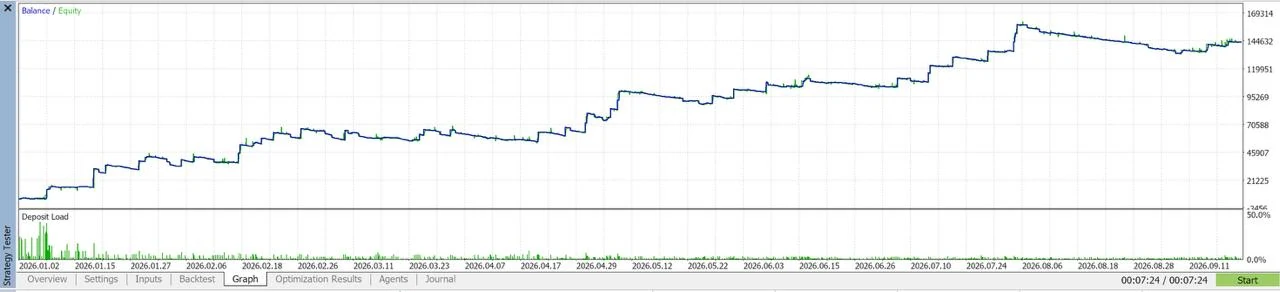
Tested onXAUUSD (gold)
PeriodJan 2, 2026 → Sep 11, 2026
Starting deposit$5,000
Ended at$143,543 ×28.7
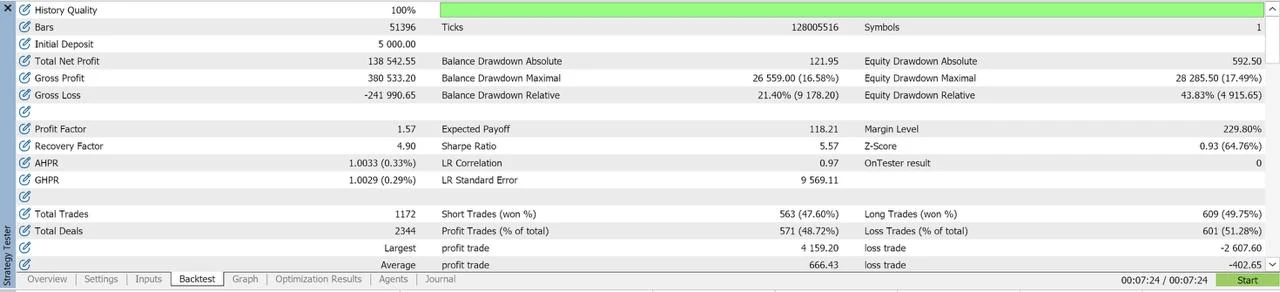
Worst equity drawdown43.83%
Profit factor1.57
How to read it.
It wins 48.72% of its trades - fewer than half - but a win averages $666 against
$403 on a loss. Being right less than half the time is the design, not a flaw.
The drawdown above is the equity one, measured while positions were open: the balance drawdown was
only 16.58%, and that is the figure most vendors show you.
Balance (blue) and equity (green) over the test. 1,172 trades.The full report, straight from the tester - every number above is on this image.
History quality 100%, 128 million ticks.
Run on the XAUUSD chart with a $5,000 account.
Leverage, spread and modelling mode are not on this report - we will add them rather than guess them.
Every setting of the robot you unlocked - what it does, and what it is set to out of the box. Read straight from the version you were given, so it can never drift from the robot on your chart.
i
Enter the unlock code Jonas sent you - it looks like UNLOCK-PHNX-XXXXXX. The one you already used to open your robot still works here, for good. It also tells us which robot to show you.
No code yet? Jonas issues it once he has seen your two activation trades. Message him.
The questions people ask Jonas most, answered straight.
Access
Is MFXT really free?
The free route is: open and fund an account with a partner broker (one deposit of $500 or more) and you get one robot, free. The other way is to buy one robot.
Is there a free trial?
No. Trials stopped on 18 September 2026: a 48-hour window showed a random slice of the market, not what the robot really does. The live results replace it, see Live track.
Can I deposit $500 in several parts?
No. The minimum is one single deposit of $500 or more. Smaller deposits don't add up, even when the total reaches $500.
Can I use my existing broker account?
Only if it's with a partner broker and was opened through the MFXT link. Otherwise a transfer is sometimes possible, never guaranteed: ask Jonas. You can also buy the robot, it runs on any MT5 account.
Can I run more than one robot?
Yes. Each robot needs its own licence key for each account. Through the free route, each extra robot is unlocked with an account at another partner broker.
Your money
Where is my money?
In your own broker account, in your name. MFXT never holds your funds and never touches them: you can withdraw from your broker whenever you want.
Do you guarantee profits?
No, and nobody honest can. Trading carries a real risk of loss. The robots manage risk with several layers of protection, but results are never guaranteed and past performance doesn't promise future results.
What happens if I withdraw my deposit?
Your robot keeps working. New generations, like the move from one PHANTOM generation to the next, are for accounts whose deposit is still in place: if you withdrew it, you redeposit to receive the update.
Technical
Does it work on MT4?
No. All three robots are MetaTrader 5 only. Your broker can open an MT5 account for you in a few minutes.
Do I need a VPS?
Strongly recommended. The robot only trades while MetaTrader is open and connected, see Run it 24/7.
Can I change the risk level later?
Yes, in the robot's inputs in MetaTrader. If trades are open, let them close before changing.
Can I trade manually on the same account?
You can, but manual trades use the same margin as the robot. For clean results, give the robot its own account.
Stay safe. MFXT will never ask for your password, your seed phrase or an ID document in a chat, and never sends a payment link by hand. Payments only go through the official checkout.

 MFXT
MFXT  Options